
Modern

Design

Recreation
A Pinterest-inspired homepage rebuilt as a modular Figma system using components with light/dark themes.
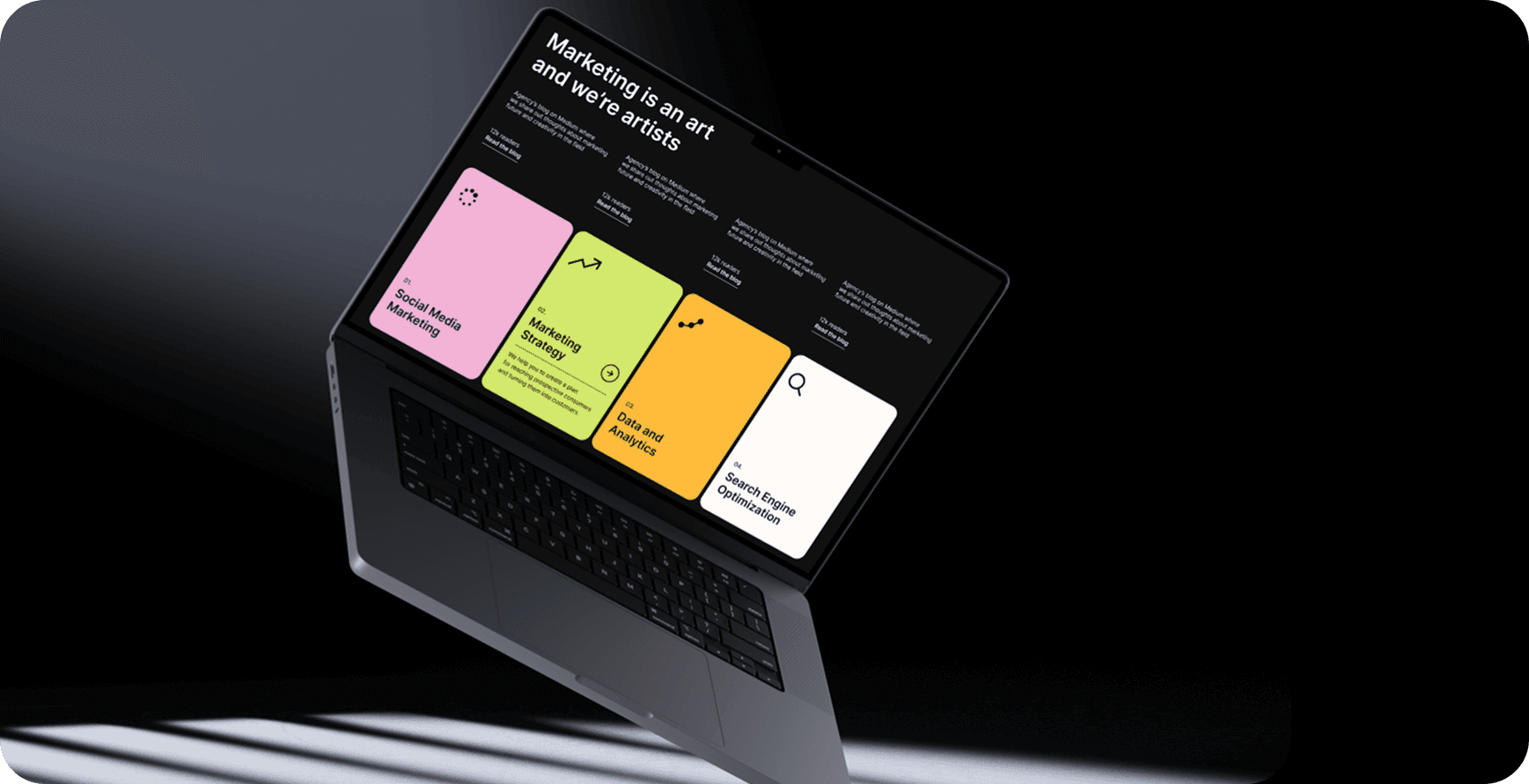
Project Overview: Modern Design
This project began as a Pinterest-inspired homepage for a marketing agency. I recreated the layout in Figma and used it as a sandbox to push my skills in Auto Layout, components, variants and responsive design systems. The result is a polished light and dark mode UI with a fully modular component library. Every element - from the navigation bar to service cards - is built to scale, adapt, and theme effortlessly.
Design Process
Tools Used
Leveraged Auto Layout, Components, Variants, and Variables in Figma to build a scalable system.
Applied text styles, grids, and icon strategies to ensure consistency and responsiveness across the design.
2
Design System
Established color, text, and state tokens as a single source of truth for theming.
Built a typography and spacing scale that maintained hierarchy and rhythm across light/dark modes.
3
Component Library
Created master components for navigation bar, hero banner, blog card, service cards, and paragraph blocks.
Organized components with clear naming conventions and documented variants for easy reuse and testing.
4
Visual Design
Preserved a minimalist, editorial aesthetic while enforcing stronger hierarchy and accessibility.
Balanced accent colors, typography, and spacing to highlight services and CTAs without clutter.
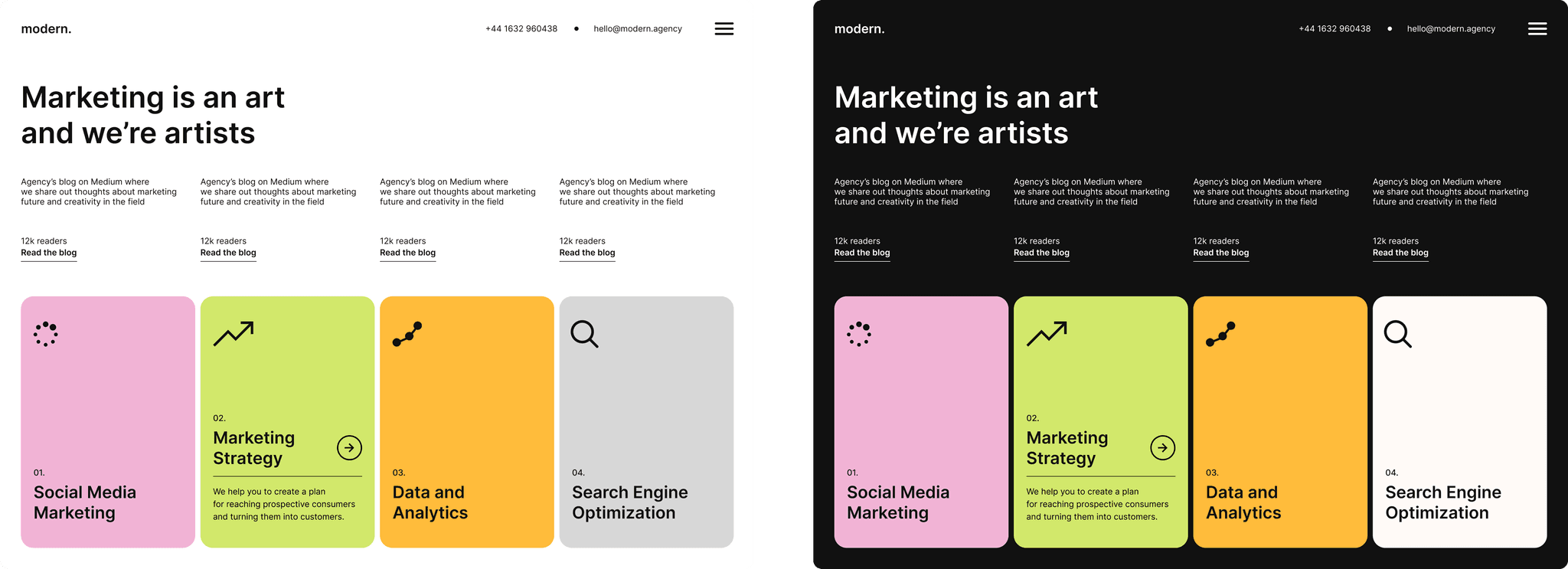
Light Mode
Dark Mode
Light/Dark Modes
To elevate the Modern Design project, I built both light and dark mode version using Figma’s variable system. Instead of duplicating screens, I defined design tokens for surfaces, text, accents, and interactive states, then linked them directly to components and variants. This allowed every element - from navigation bars to service cards - to inherit the correct theme automatically. Icons were set to adapt through currentColor or theme-specific variants, ensuring clarity in both modes. By structuring the system around variables, I created a single source of truth where updating a color cascades across the entire design. This approach not only streamlined responsiveness with Auto Layout but also ensured accessibility and consistency, making the design scalable, future-proof, and developer-friendly,
Auto Layout & Responsiveness
I structured the layout using a 12-column grid that adapts to tablet and mobile breakpoints. Auto Layout ensures consistent spacing and alignment across components. For example, service cards shift from a a 4-up grid on desktop to a stacked column on mobile, with icons and text resizing gracefully. The navigation bar remains anchored with flexible contact visibility, and hero content stacks dynamically based on screen width.
Design Systems & Lessons Learned
Theming with Design Tokens
Color tokens drive surface, text, and accent colors across light and dark modes
Elevation and contrast are carefully tuned for accessibility in dark mode
State tokens ensure consistent hover and focus behavior across components
Icons adapt to theme using current color or variant swaps for clarity
Process & Learnings
Started with atomic components before assembling full layouts
Built variants early to test flexibility across themes and densities
Used Auto Layout to simulate real-world responsiveness without manual overrides
Verified contrast and legibility in dark mode from the start
Learned how to scale a design system that’s both visually consistent and technically robust
Why Systems Matter: Auto Layout, Variants, and Components
Design isn’t just about visuals - it’s about building scalable systems that adapt to change. In Figma, Auto Layout, Variants, and Components are the backbone of efficient, professional design workflows. They allow designers to move beyond static mockups and create flexible, reusable structures that behave like real products. Using these tools ensures consistency, speeds up iterations, and makes collaboration with developers seamless.
Key Benefits
Consistency across designs:
Components ensure that buttons, cards, and navigation bars look and behave the same everywhere.
Faster Iteration: Variants allow you to swap states (hover, active, dark mode) instantly without duplicating designs.
Responsive Layouts: Auto Layout makes designs adapt to different screen sizes, simulating real-world responsiveness.
Scalability: Systems built with components and variants can grow with the product, reducing rework.
Collaboration-Ready: Developers can inspect structured components in Figma, making handoff smoother and reducing ambiguity.
Future-Proofing: Theming and tokens combined with components allow easy updates across an entire design system.